

Dominican Republic Customs and Immigration E-Ticket

To make your arrival and departure as smooth as possible, please take about ten minutes to fill out your digital “E-Ticket.”
You will need to complete the form before entering and exiting the country. Follow the directions below.
- Click here to access the E-Ticket form
- Select “English” at top-right (the form often reverts to Spanish during the application process; you may have select “English” at the top-right multiple times)
- Click “E-Ticket Application” to begin filling out the form, then “New e-ticket.”
- Indicate whether you are traveling with someone else, such as a family member (that you are with a tour group does not mean that you are traveling with someone else for these purposes).
- Check the box that says “I am not a robot” then click “Submit.”
- Fill out the required info (In the City section, click “Click here to select” to search for your home city in the database)
- Select “Arrival to the Dominican Republic” and then NEXT
- Enter all the required info. You will need your passport and flight info (including confirmation #) to complete the form.
- The flight info you enter will only be the segment of your itinerary that takes you into (or out of, when you submit departure flight details) the D.R. (as opposed to your origin airport, if you have a connection). “Embarkation Port” is where you board your flight to the DR and “Disembarkation Port” is where you land in the DR).
- The section that asks for your first and last name is a bit unique because of the different way that Hispanic names are constructed. Where it says “Names,” put your first and middle name, and where it says “Last Names,” put your last name.
- The form asks if you are staying in a hotel. Select “yes” and enter “Crowne Plaza” to populate the option to select (If you are only going to Santiago for the Northern part of the tour, select “Hodelpa Gran Almirante.”)
- Your travel purpose is “Leisure” (not “Sport”)
- If you’re traveling with more than one person, continue with Passenger 2
- At the end, it will ask if you want to add your exit info. Yes, you do! You’ll need to enter all your departure flight info – just the flight that leaves the DR.
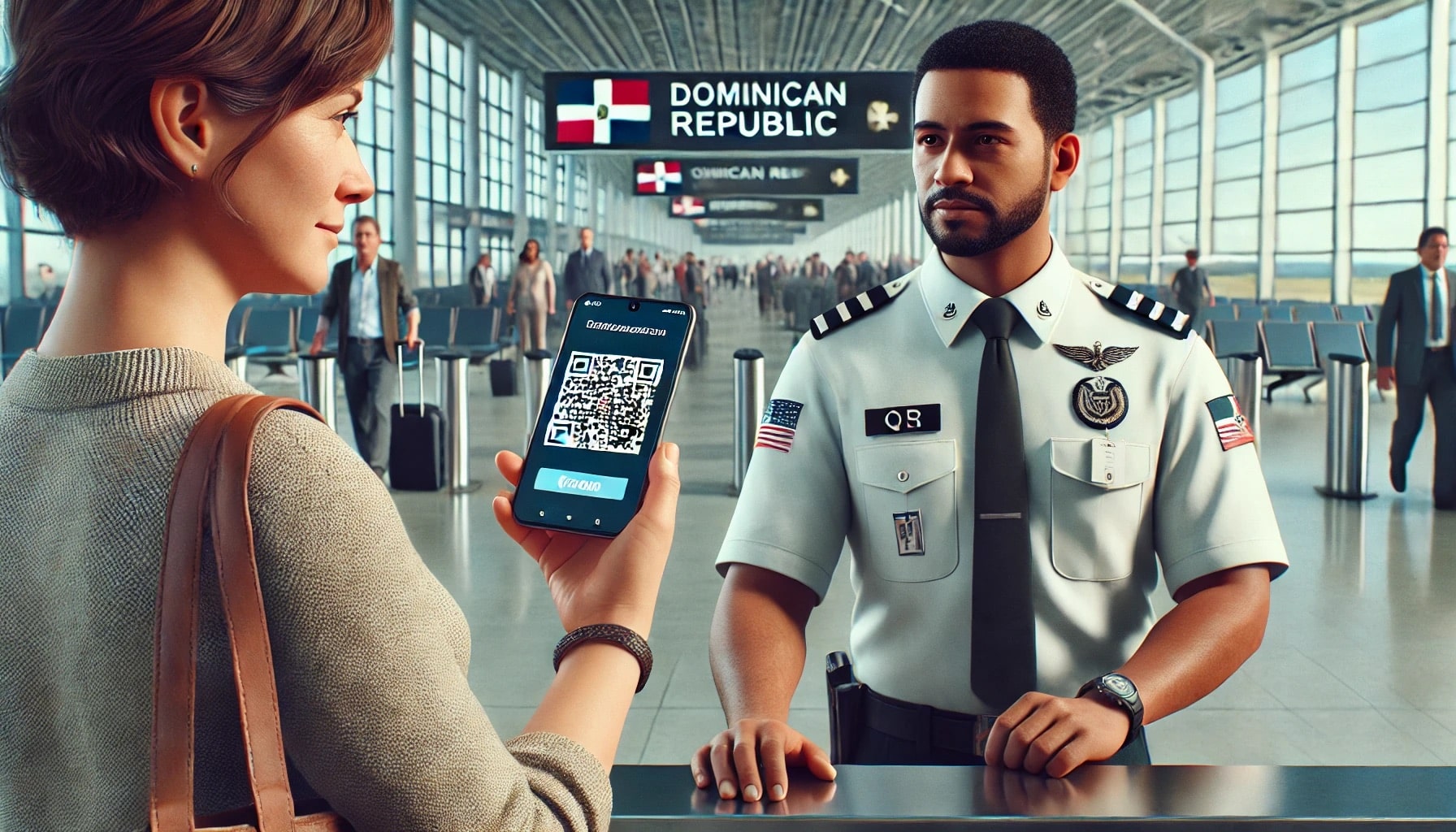
Once you complete all the info, two unique QR codes are generated – one for arrival (“entrada”) and the other for departure (“salida”). Click the button to download a PDF with your code and also click “Send by e-mail.” You’ll receive an email to the address you entered with two attached PDFs – one for arrival and another for departure. Be sure to download the codes and click the email button immediately because if you don’t, you might have to do the process again.
Make sure that you have the saved QR code on your person while traveling (e.g., on your phone and/or a printed copy).